
If you've never cropped a shipping label PDF before, the process can seem more technical than it actually is. This guide walks through exactly how to crop a flipkart label pdf for free — from downloading the original file to printing a clean, properly sized label, with no design skills required.
What you'll need before starting
Just two things: access to your Flipkart Seller Hub account, and a browser. No software installation, no design tools, and no account signup on CropLabel itself.
Step 1: Download your Flipkart label PDF
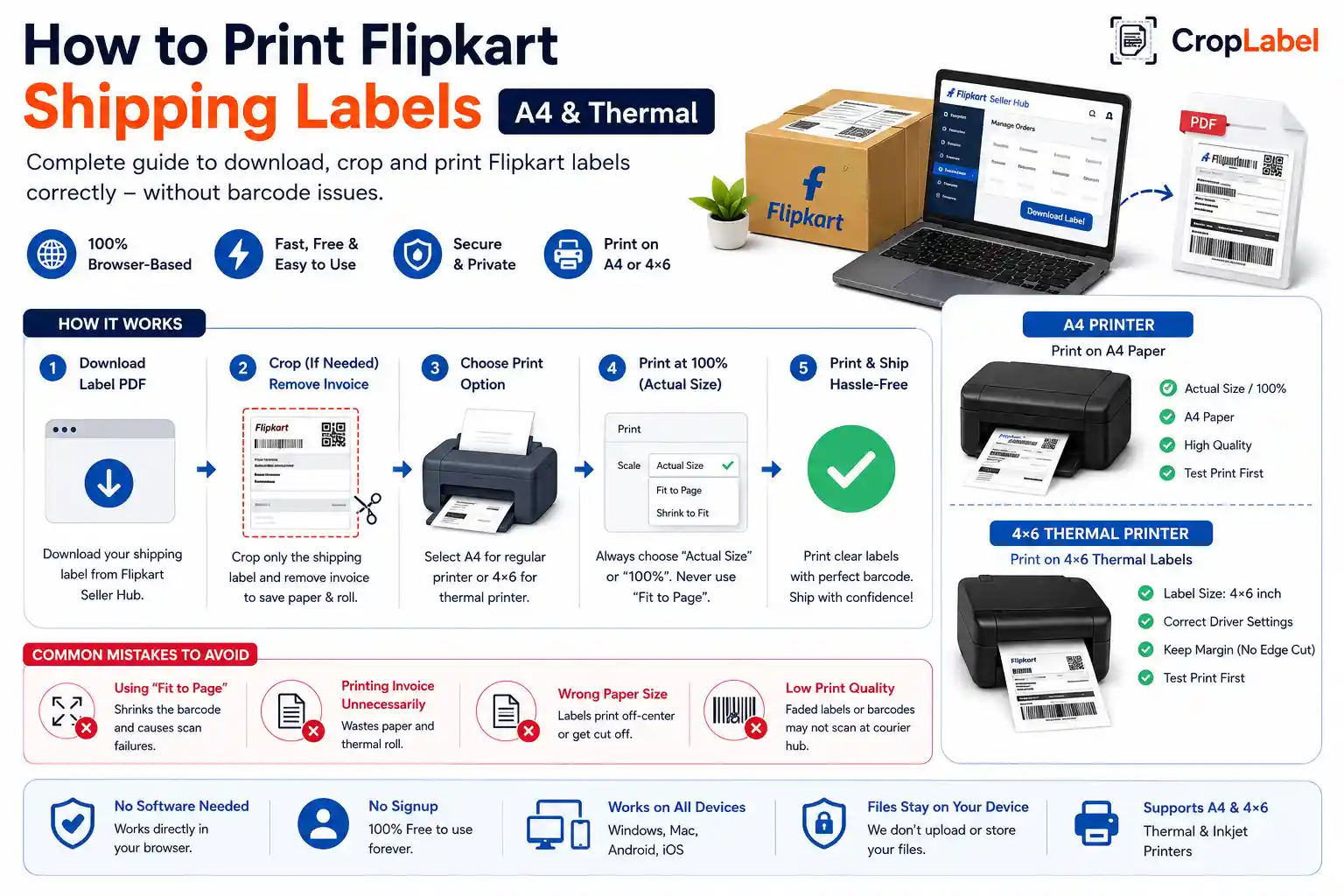
Log in to the Flipkart Seller Hub, go to Orders → Manage Orders, find the order you want to ship, click "Ready to Ship," and download the shipping label. For bulk dispatch, Flipkart also lets you download multiple order labels together in one combined PDF.
Step 2: Open the Flipkart Label Crop PDF tool
Go to CropLabel's Flipkart Label Crop Tool in any browser. There's no login required — just an upload box waiting for your file.
Step 3: Upload your PDF
Drag and drop your downloaded label PDF into the upload box, or tap to browse and select it. Both single-order and multi-order PDFs are supported — the tool automatically detects how many labels are inside the file.
Step 4: Choose your output format
Select whether you want the cropped PDF prepared for A4 printing or 4×6 thermal printing. This determines how the label is resized and positioned in the output file.
Step 5: Choose invoice settings
Decide whether to keep the invoice and GST details attached, or remove them so only the shipping label remains. Either option keeps the barcode and address section fully intact.
Step 6: Download your cropped PDF
Once processing finishes — usually within a few seconds — download your cropped, print-ready PDF. It's a standard PDF file, so it opens in any PDF reader and prints from any printer without extra conversion steps.
Common issues and how to avoid them
- Barcode not scanning after printing: make sure your printer is set to "Actual Size," not "Fit to Page"
- Label prints off-center: confirm the correct paper size (A4 or thermal roll width) is selected in your printer settings
- Wrong labels for the wrong orders: double-check the multi-order PDF before uploading, especially for bulk dispatch days
Cropping PDFs in bulk
This same step-by-step process works whether you're cropping one label or a hundred inside one PDF. For very large batches, use the Merge & Sort tool first to combine multiple label files and sort them by SKU or courier partner before running them through the crop tool.
Crop your Flipkart label PDF now
Follow the same six steps above — free, browser-based, ready in seconds.