Printing Flipkart shipping labels correctly matters more than most sellers realize — a poorly scaled or uncropped label can cause barcode scan failures at the courier hub, wasted paper, or delayed pickups. Whether you're using an A4 printer or a 4×6 thermal printer, this guide covers every step to download, prepare, and flipkart label crop and print without errors.
Step 1: Download your shipping label
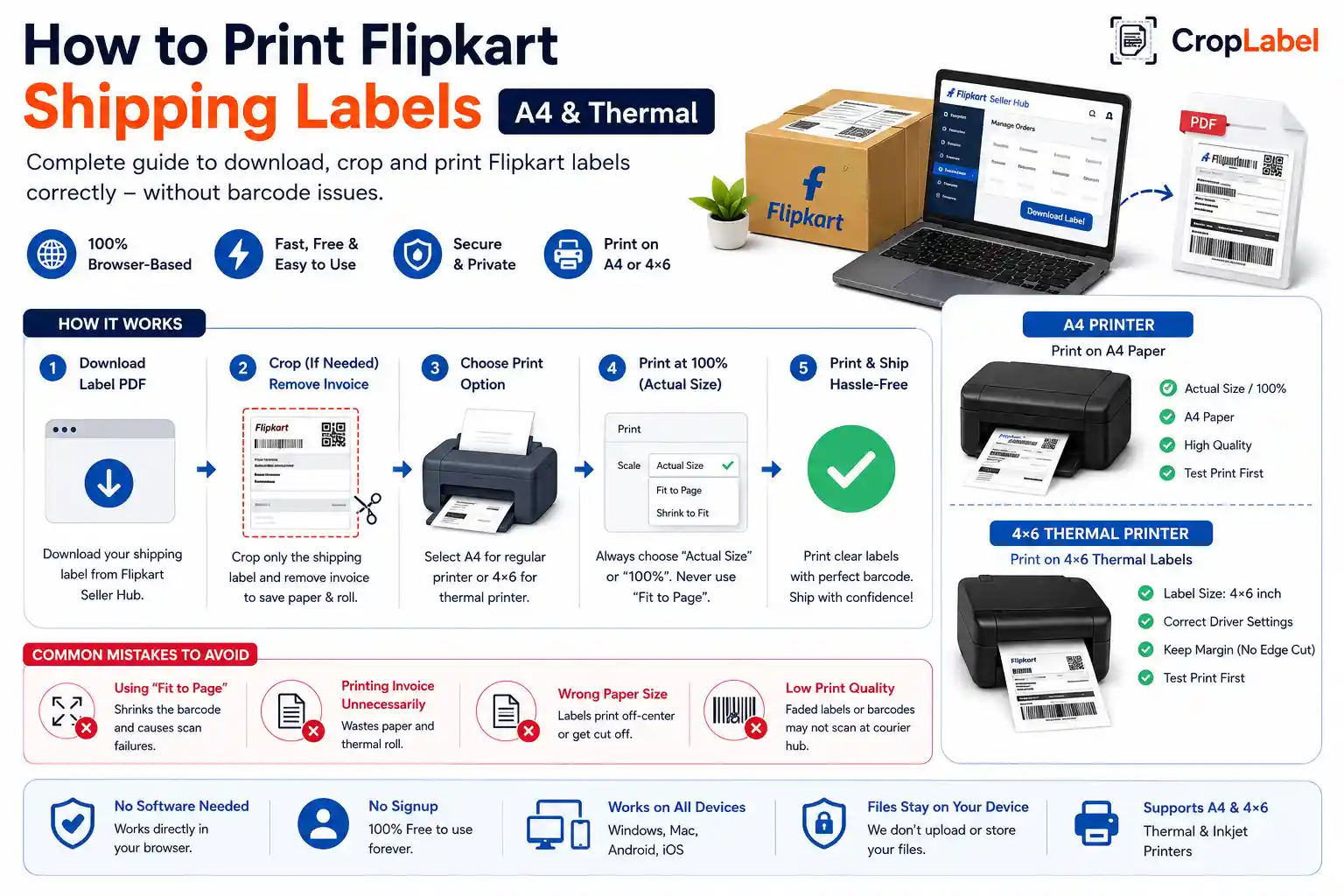
Log in to the Flipkart Seller Hub, open the Orders tab, and select "Manage Orders" to find the order you want to dispatch. Click "Ready to Ship," choose your shipping partner, then download the label PDF. Flipkart also supports downloading multiple labels together for bulk dispatch, which is useful if you're processing several orders at once.
Step 2: Understand what's in the PDF
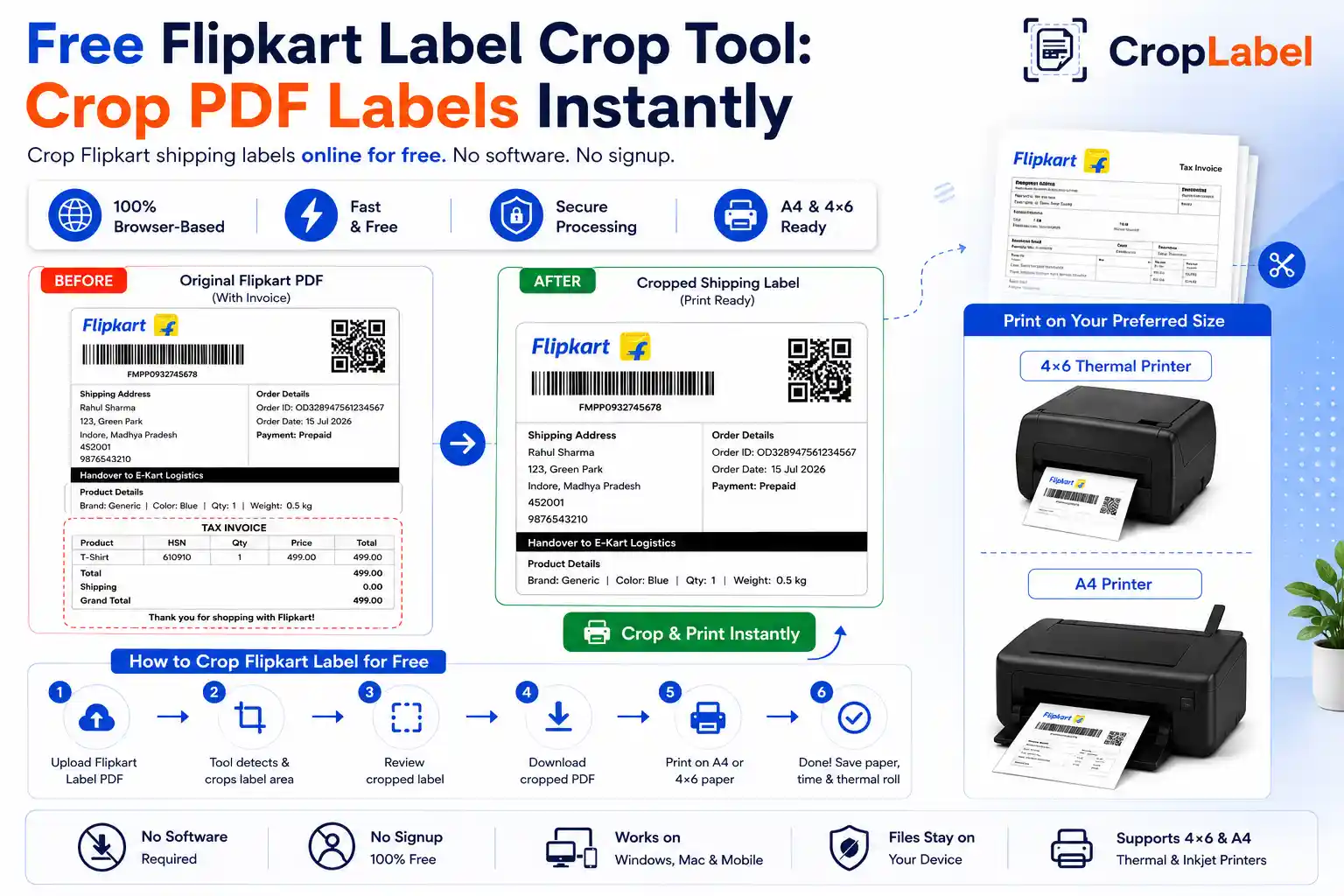
Flipkart's label PDF typically includes the shipping label with barcode and address, along with an invoice section that carries GST and order details. If you don't need the invoice printed alongside the label, printing both wastes paper on A4 printers and extra roll length on thermal printers.
Step 3: Crop the label if necessary
If you only need the shipping label, crop the PDF before printing. This keeps the barcode and address section intact while removing the invoice and GST details below it. Use CropLabel's Flipkart Label Crop Tool to do this automatically — even for bulk multi-order PDFs.
Step 4: Print on A4 paper
For A4 printing, check your print dialog settings carefully before printing:
- Select "Actual Size" or "100%"— never "Fit to Page" or "Shrink to Fit"
- Set paper size to A4
- Disable any "scale to fit margins" option
- Print a test page first to confirm barcode alignment
Scaling changes barcode dimensions even slightly, which can cause courier scanners to reject the label at pickup. Always verify with a test scan before printing in bulk.
Step 5: Print on a 4×6 thermal printer
Thermal printers need a different setup than A4 printing. Before printing:
- Convert or set the label size to 4×6 inches in your print settings
- Make sure the printer driver is set to the correct label size (not letter/A4)
- Keep sufficient margins around the barcode — avoid edge cropping
- Test print one label to confirm the barcode isn't cut off
If your downloaded PDF isn't already in 4×6 format, resize or crop it first so the label fits your thermal roll without distortion.
Common printing mistakes to avoid
- Using "Fit to Page": shrinks the barcode and can cause scan failures
- Printing invoice pages unnecessarily: wastes paper and thermal roll on high order volumes
- Wrong paper size selected: causes labels to print off-center or cut off
- Low print quality/faded ink: can make barcodes unreadable at the courier hub
Bulk printing tips for high order volumes
If you're dispatching many Flipkart orders daily, printing labels one-by-one isn't efficient. Combine multiple order labels into a single PDF using the Merge & Sort tool, crop out invoices in bulk, and sort labels by SKU or courier partner before printing so packing stays organized during dispatch.
Ready to crop your Flipkart labels?
Crop, resize, and prepare Flipkart shipping labels for A4 or thermal printing — free, in your browser, no signup required.