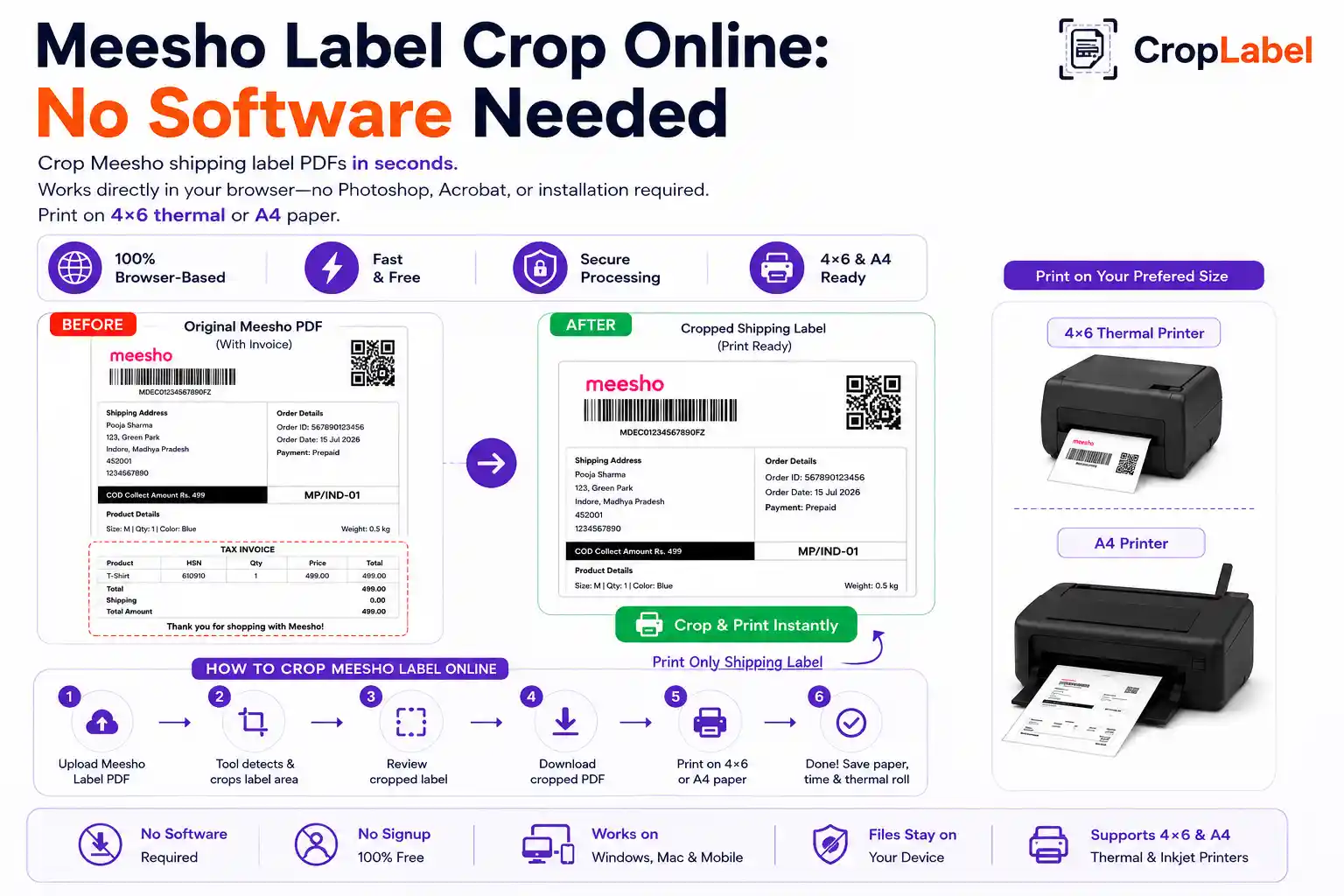
Not every Meesho seller uses a thermal printer — a large number still print shipping labels on standard A4 paper using regular inkjet or laser printers. But Meesho's default label PDF isn't always A4-friendly out of the box, which is where a proper meesho label crop a4 workflow makes a real difference.
Why Meesho labels need cropping for A4 printing
Meesho's shipping label PDF is generated in a size meant to work across both thermal and A4 formats, often with an invoice section included below the label. Printed as-is on A4 paper, this can lead to:
- Labels printing too small or off-center on the page
- Unnecessary invoice pages using up paper and ink
- Barcode distortion if print scaling isn't set correctly
- Inconsistent label sizes across different orders
Cropping the label before printing solves all of this in one step, giving you a clean, properly sized label every time.
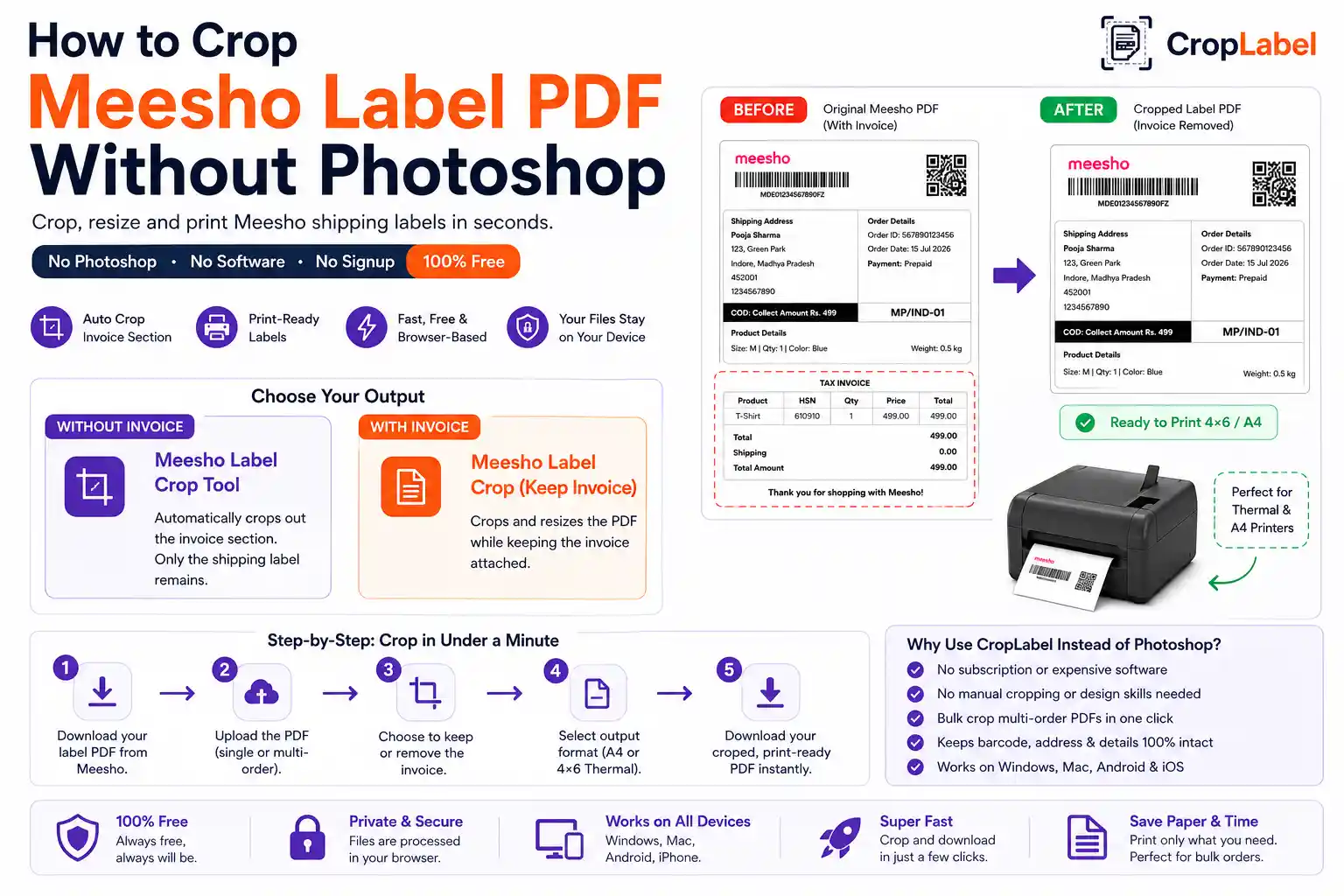
Crop Meesho labels for A4 — with or without invoice
Depending on your dispatch process, you may want to keep the invoice attached or remove it entirely. CropLabel supports both:
Meesho Label Crop Tool
Crops to A4 size and removes the invoice — just the shipping label, ready to print.
With InvoiceMeesho Label Crop (Keep Invoice)
Fits both the label and invoice cleanly onto A4 for sellers who need to keep paperwork together.
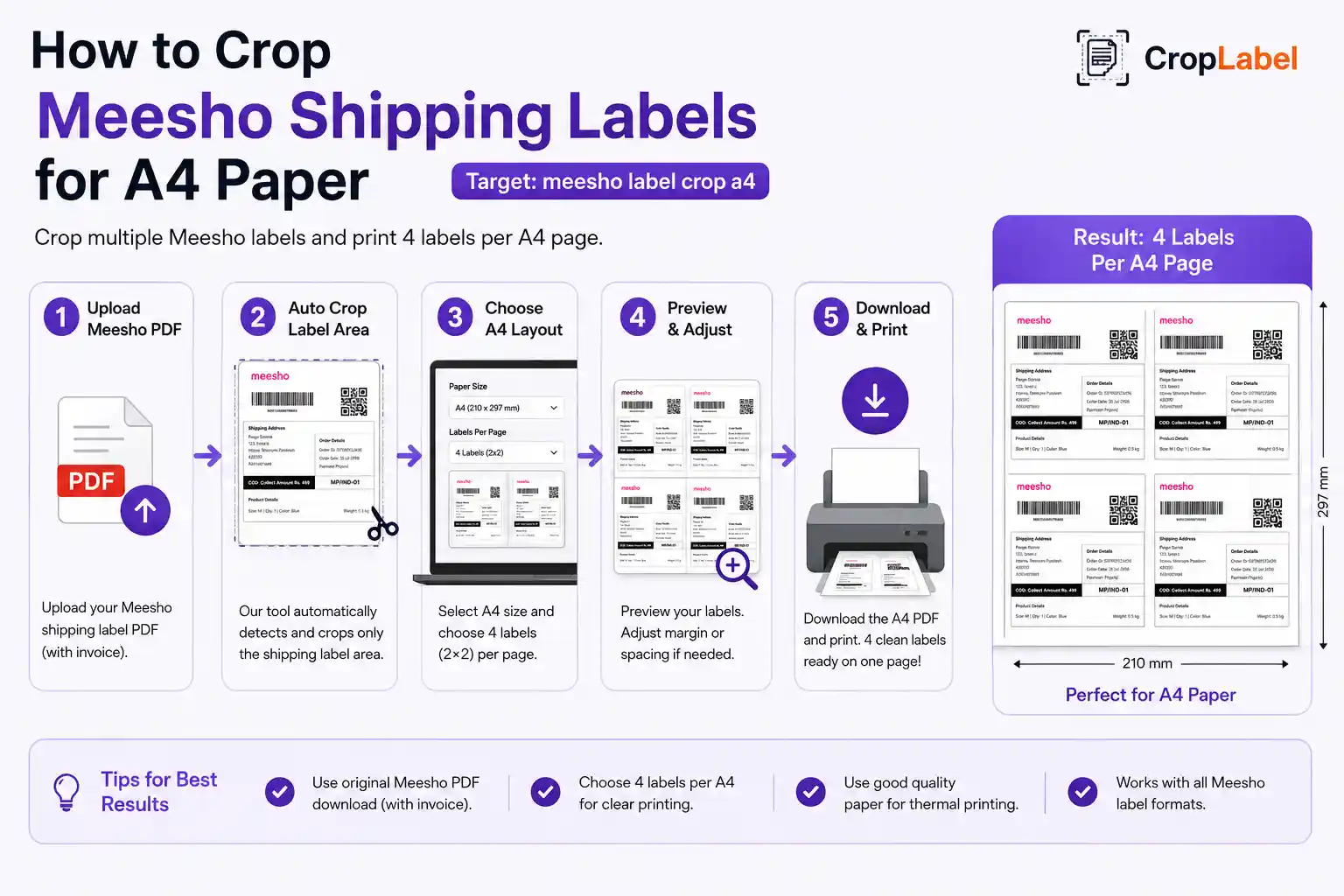
Step-by-step: crop and print Meesho labels on A4
- Download your shipping label PDF from the Meesho Supplier Panel.
- Open the CropLabel Meesho Label Crop Tool in your browser.
- Upload the PDF and select A4 Printer as your output format.
- Choose whether to keep or remove the invoice section.
- Download the cropped, A4-ready PDF.
- Print at "Actual Size" or "100%" — never "Fit to Page".
That last step matters more than it seems — even a correctly cropped label can scan poorly if your printer settings scale it down at the last moment.
Getting the print settings right on A4
Once your label is cropped to A4 size, double-check these settings in your print dialog before hitting print:
- Paper size set to A4, not Letter
- Scale set to 100% / Actual Size
- Margins set to none or minimum, not "default"
- Print a single test label before running a full batch
A4 printing for bulk Meesho orders
If you're printing labels for multiple orders at once, upload your combined multi-order PDF directly — the tool crops every label inside it to A4 format in a single pass. For very large batches, use the Merge & Sort tool first to combine and sort labels by SKU before cropping, so your printed stack matches your packing order.
Crop your Meesho labels for A4 now
Free, browser-based, and ready in seconds — no signup needed.